
Getting started · Mapping kit
Set up your kit,
step by step
From unboxing to your final report – this guide covers every step of the way.
What this guide covers
Nine steps, four phases, everything you need to conduct your mapping.
Before you start your mapping
Make sure all these boxes are checked before beginning your study.
Your kit has arrived
Make sure your mapping kit is in your hands and contains everything you need.
Order more loggersYou have software access
Ensure you have access to our mapping software (we send the invite on the shipment date).
Open the mapping softwareYour protocol is ready
Make sure your protocol is finalized before placing your loggers and starting the study.
Download a protocol templateYour devices are online
Check that your Basestation is online and each logger shows a green Wi-Fi icon.
View the connection guideJust need the setup steps on one page? Print the quick start sheet
Prefer the whole thing in one document? Read the full mapping kit guide
Step 01
What is in your kit
Verify every component before connecting anything: Data loggers, sensors, Basestation, Live Data Hub (if relevant), etc.
Step 02
Connecting your Basestation and loggers
Power on the Basestation, wait for a steady green LED, then connect each logger and confirm it appears online in Eupry Mapping Software.
Having trouble connecting?Get in touchStep 2b
Connecting your loggers over your own Wi-Fi
An alternative to Step 2 for kits with data loggers only: join each logger to your own Wi-Fi network instead of the Basestation.
Step 03
Getting into the mapping software
See how to log in and use our mapping software. We send you an invite on the day we ship your kit.
Step 04
Configuring your mapping study
How to set your mapping name, timezone, dates, measurement type, and acceptance levels.
No protocol yet?Download a template hereStep 05
Placing loggers and starting the study
Place loggers per your mapping protocol, confirm each shows a green Wi-Fi icon, allow 24 hours to stabilize, and you are ready to start your study.
Need more loggers for your space?Add them to your current orderStep 06
Monitoring your study
How to monitor your mapping in the software.
Step 07
Generating your mapping report
Guide to the different elements (graph, summary table, box plot, etc.), analyzing data, and generating your report.
Step 08
Completing your documentation package
Download your PDF report, calibration certificates, and similar.
Need help with qualification docs?Book a CQV consultancyStep 09
Returning your kit
Request a prepaid return label, repack all components, and send off your kit – or extend your rental into a mapping kit subscription to always have the equipment on hand.
Your mapping identifies the risk zones. Monitoring keeps them in check. Your loggers can do both.Switch to continuous monitoring or learn moreGuide complete
You are done
Your mapping study is complete, and your documentation is audit-ready. Access your study records in the mapping software anytime, or start planning your next mapping.
What comes next?
Keep your kit working for you, or send it back when you are done.
Switch to monitoring
The same loggers you have used now can also be used for monitoring. Simply switch the software, and you are live. No new hardware or recalibration. See how it works here.
Plan your next mapping
Your mapping kit can map more than one piece of equipment or facility. Switch to a subscription and keep it on hand, packed and ready the moment your next mapping is due.
Return the kit
Finished for now? Request a prepaid shipping label, pack everything in the original box, and hand it to the courier.
Guides and resources
Templates, checklists, and protocols for your mapping kit.
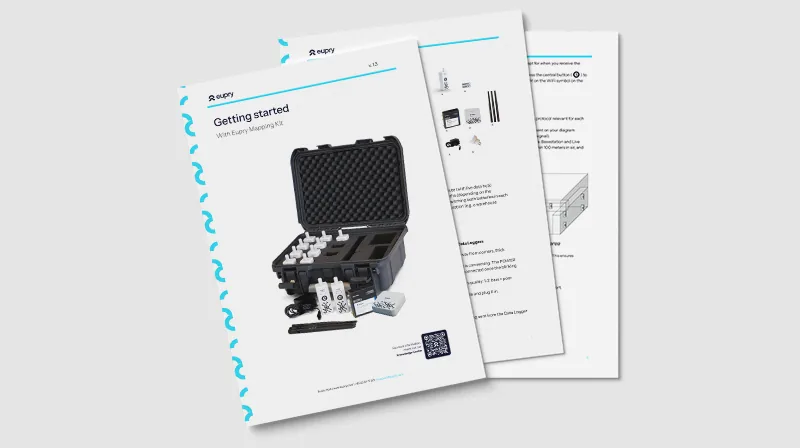
Mapping kit user guide
The complete walkthrough for your kit in one document – hardware setup, running a study, and reporting.
Download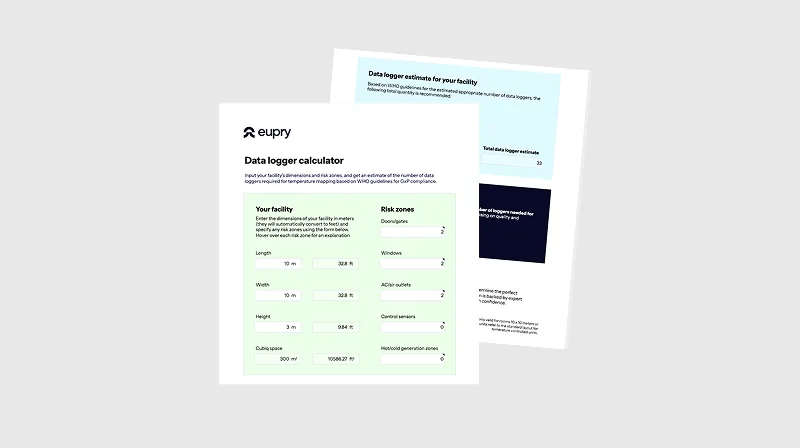
Data logger amount for mapping
Find out exactly how many loggers your space requires before you begin.
Download
Temperature mapping report
A ready-to-use report template with practical examples for your final submission.
Download
WHO's mapping guidelines
8 concrete steps aligned with WHO mapping requirements.
Download
Temperature mapping in GxP
A 5-step guide covering planning, execution, and reporting in full.
Download
IQ/OQ/PQ protocol package
Protocol templates for qualifying temperature-controlled environments.
DownloadTechnical specifications
See the data sheets for every device in your mapping kit.
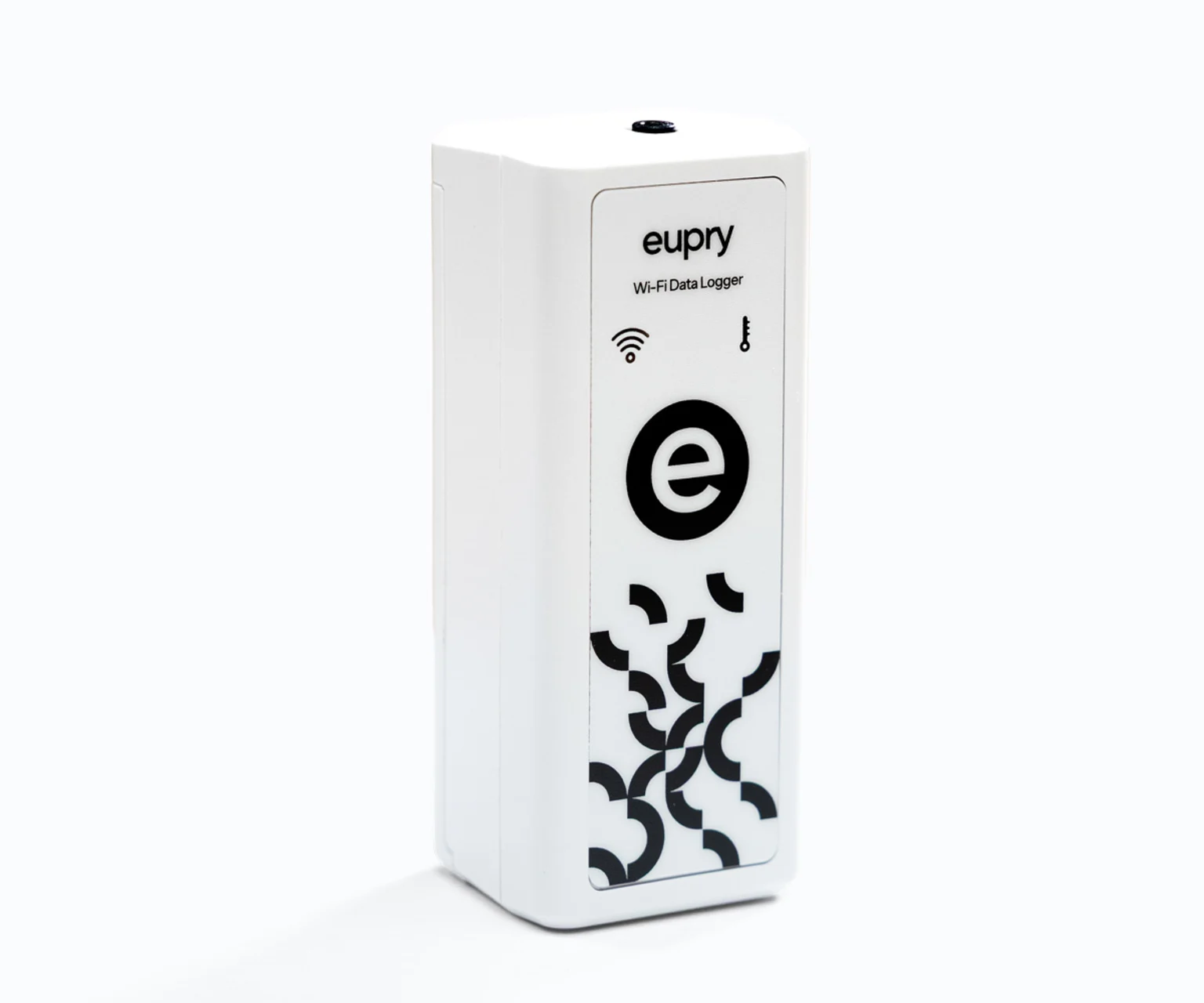
Data Logger
Wireless, battery-powered recording device. Measures temperature, humidity, or CO₂ via an external sensor or probe. One reading per minute, uploads every 3 minutes via Live Data Hub.
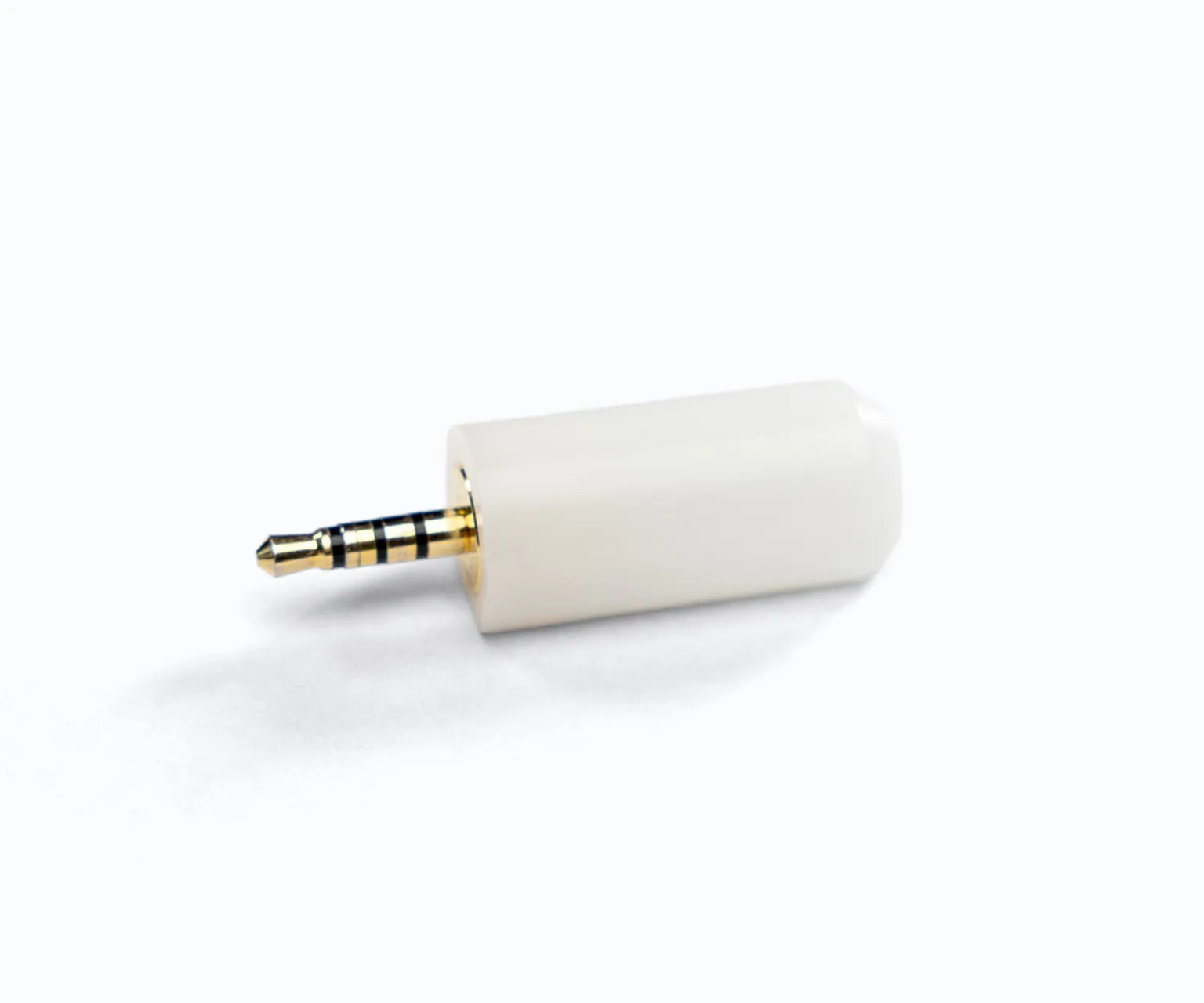
Sensors & Probes
Individually calibrated sensors and probes, available in temperature, humidity, and CO₂ variants. The unique ID on each matches its calibration certificate in Eupry Mapping Software.
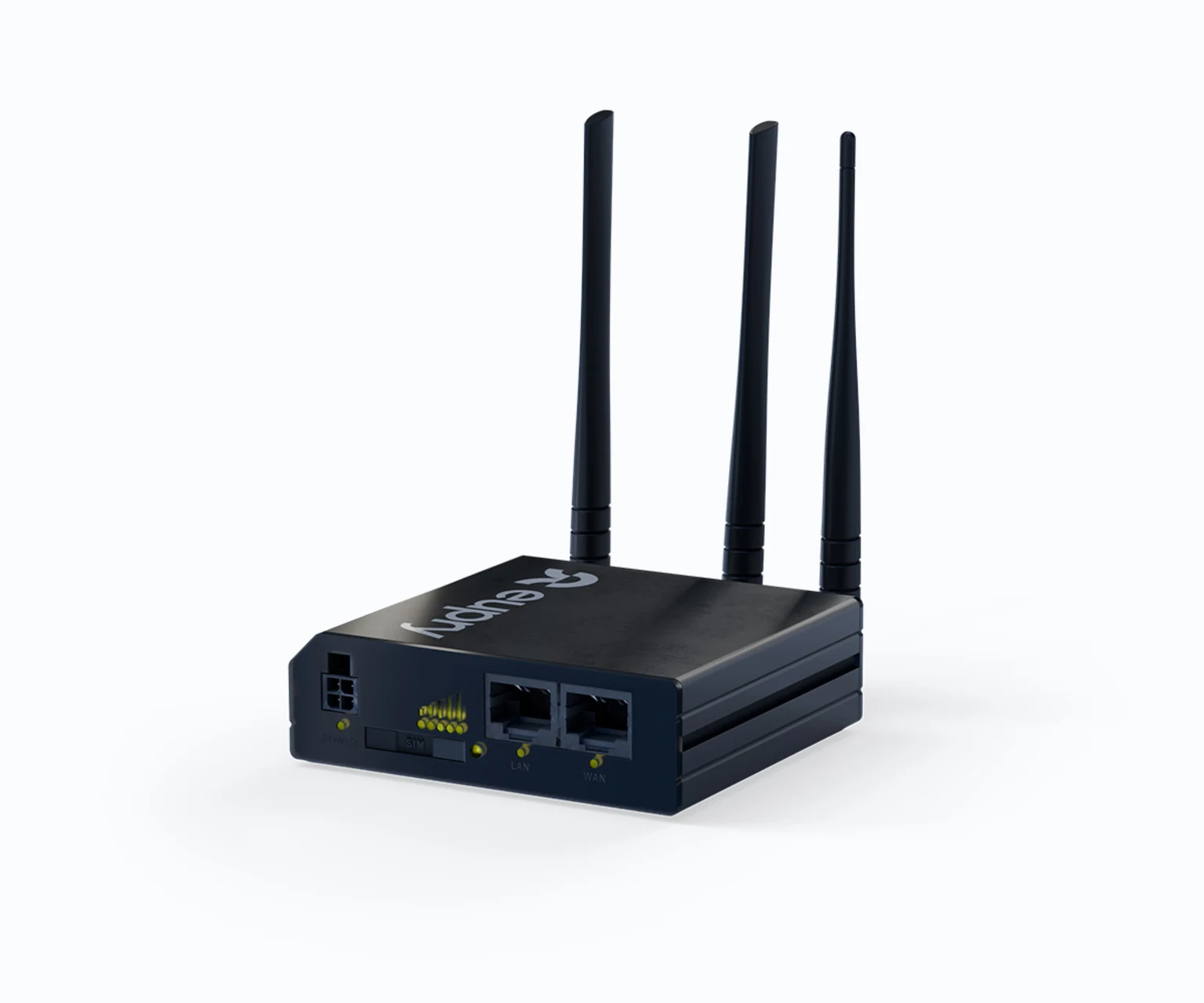
Basestation
Wireless hub that receives data from loggers and transmits to the Eupry cloud. Requires all three antennas attached before power-on. Supports Wi-Fi and 4G connectivity.
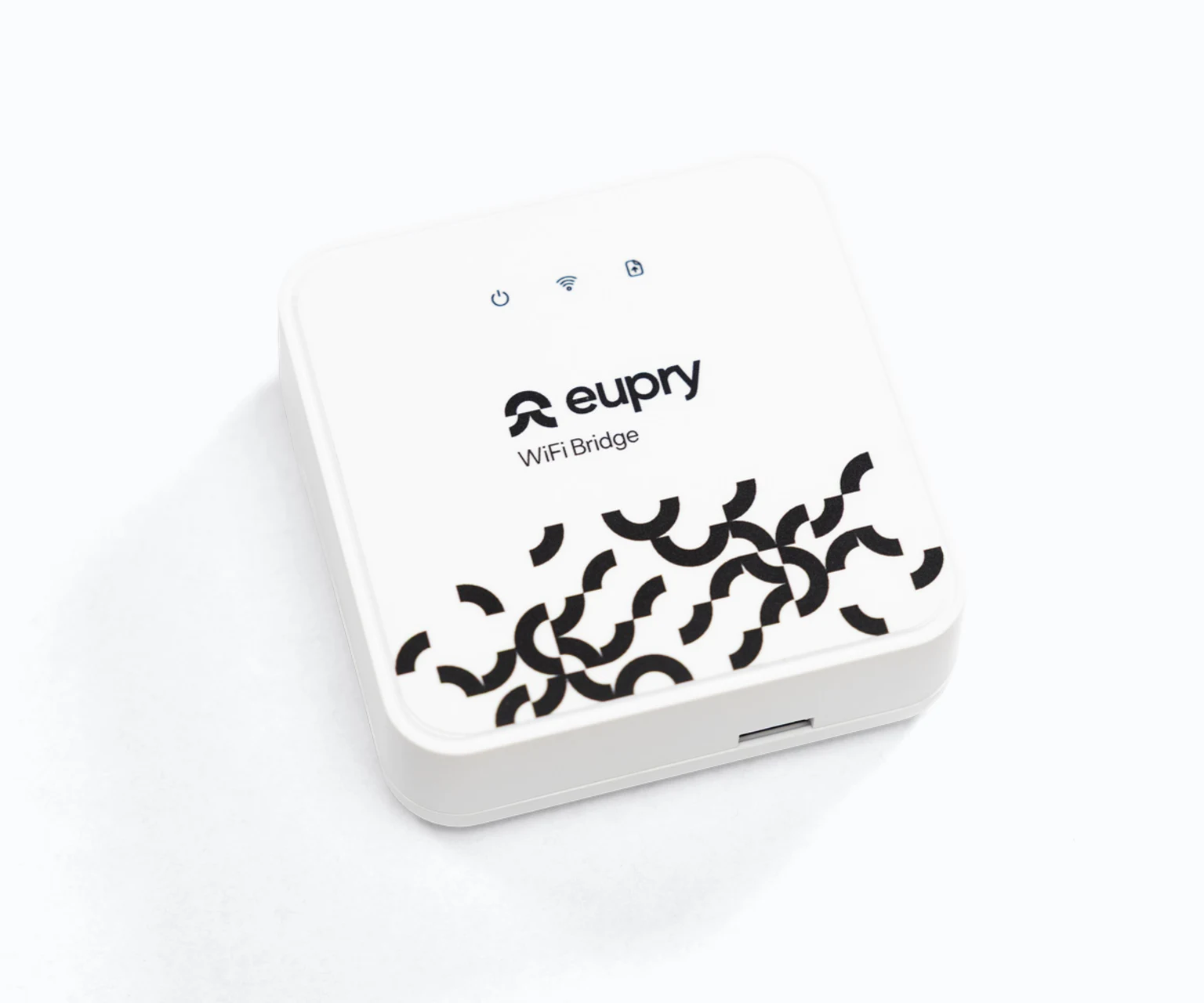
Live Data Hub
Reduces upload interval from 60 minutes to 3 minutes. Connect to the Basestation via power supply. Three front-panel indicators: Power, Wi-Fi, and Data Transmission.
Add-ons
Need more from your kit?
The mapping kit is just the beginning. Extend what your solution can do – from expert validation support to ongoing monitoring.
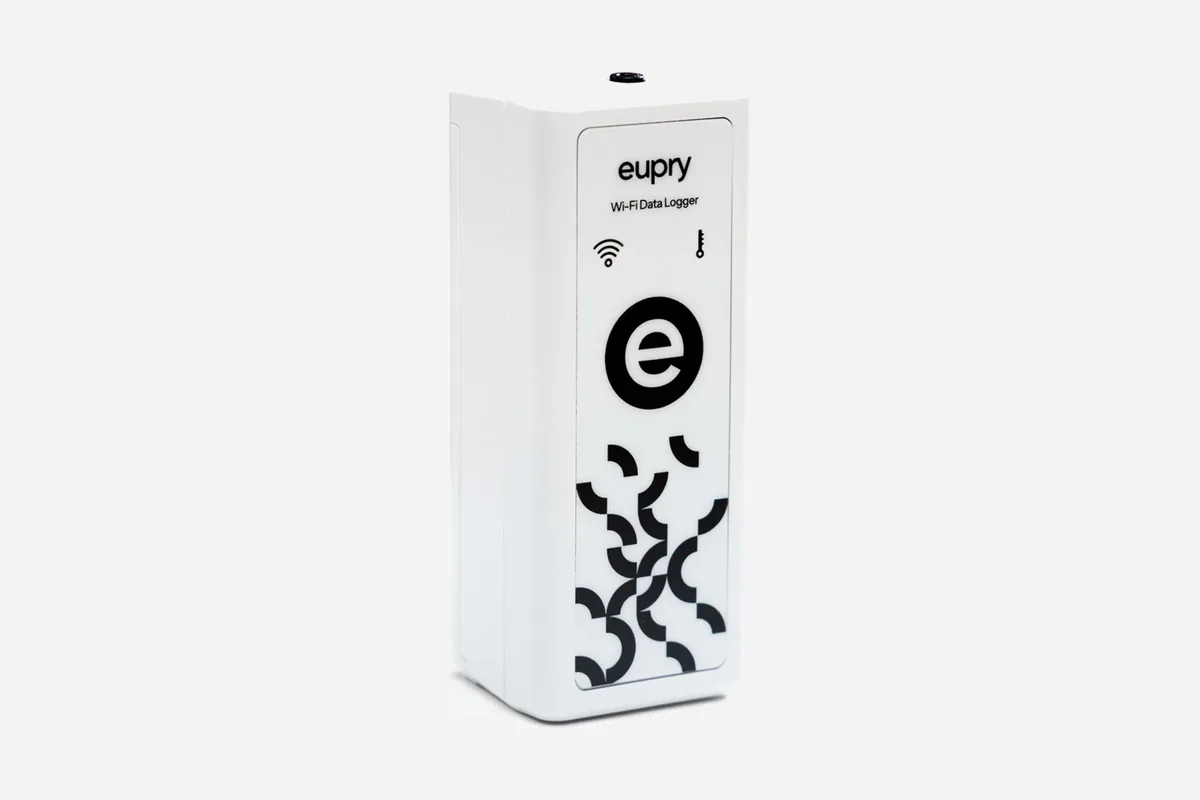
Add more loggers
Need to cover more positions than your current kit holds? We can ship additional calibrated loggers so every point in your study is measured.
Add more loggers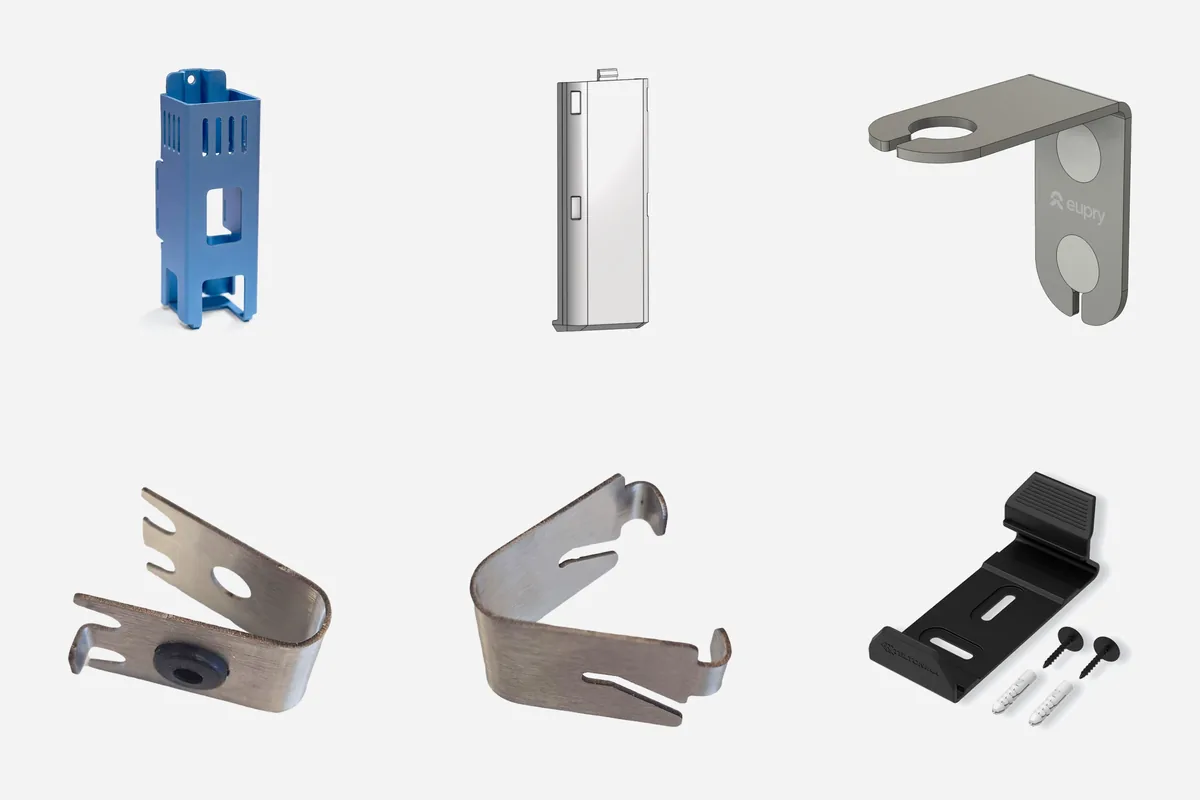
Mounting options
We have a bunch of different mounting options and other hardware accessories.
See the options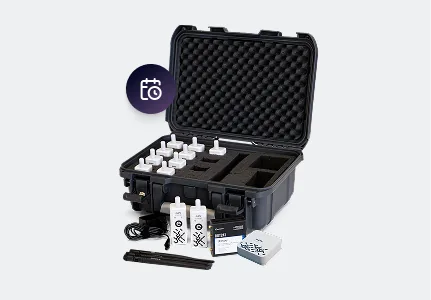
Mapping kit subscription
Turn your kit into a subscription to always have mapping equipment on hand. We send you new calibrated sensors when needed to make sure your study is always ready to start, with no downtime.
Explore a subscription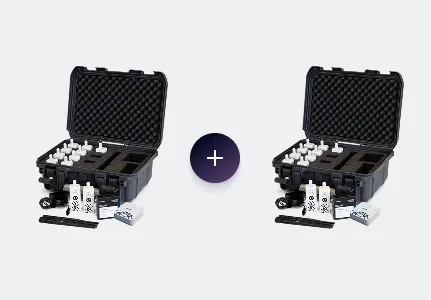
Rent a new kit
Starting a new mapping project? Get a full mapping kit shipped to your site, ready to run from day one.
Rent a new kit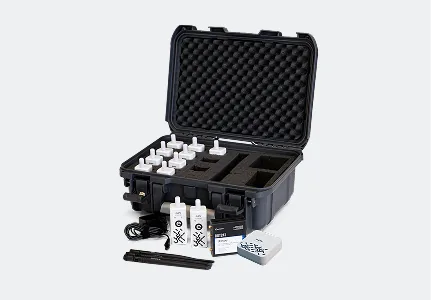
Extend your current rental
Need the kit for longer? Extend your current rental so you can finish your study without returning the equipment early.
Extend your rental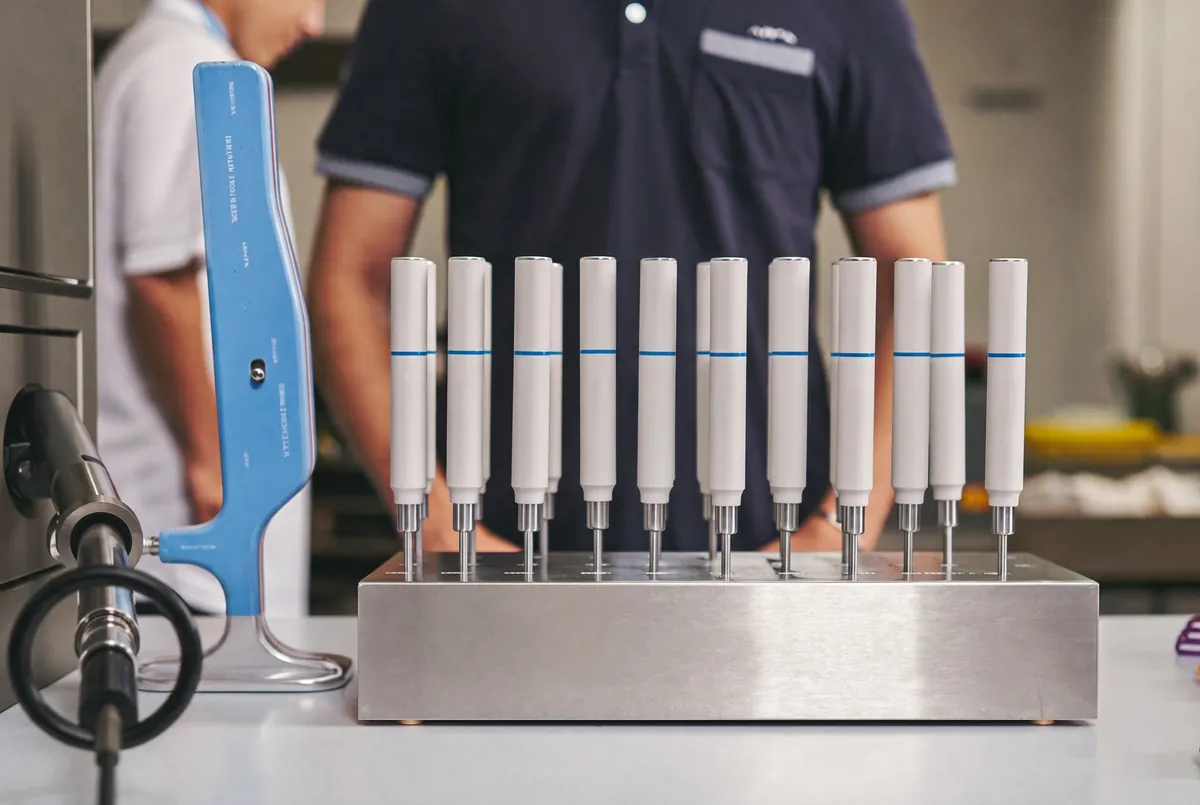
End-of-study calibration
Close the loop with a documented calibration check after your study – the post-study evidence that confirms your sensors held their accuracy from the first reading to the last.
Add end calibration
Extra training for your team
Book a session for the people running your studies, tailored to where they need it – from kit setup and the mapping software to reading the final report.
Book training
On-site support
Get Eupry specialists on site – an extra pair of hands for setup and placement, or a team to run the full mapping study for you.
Request on-site support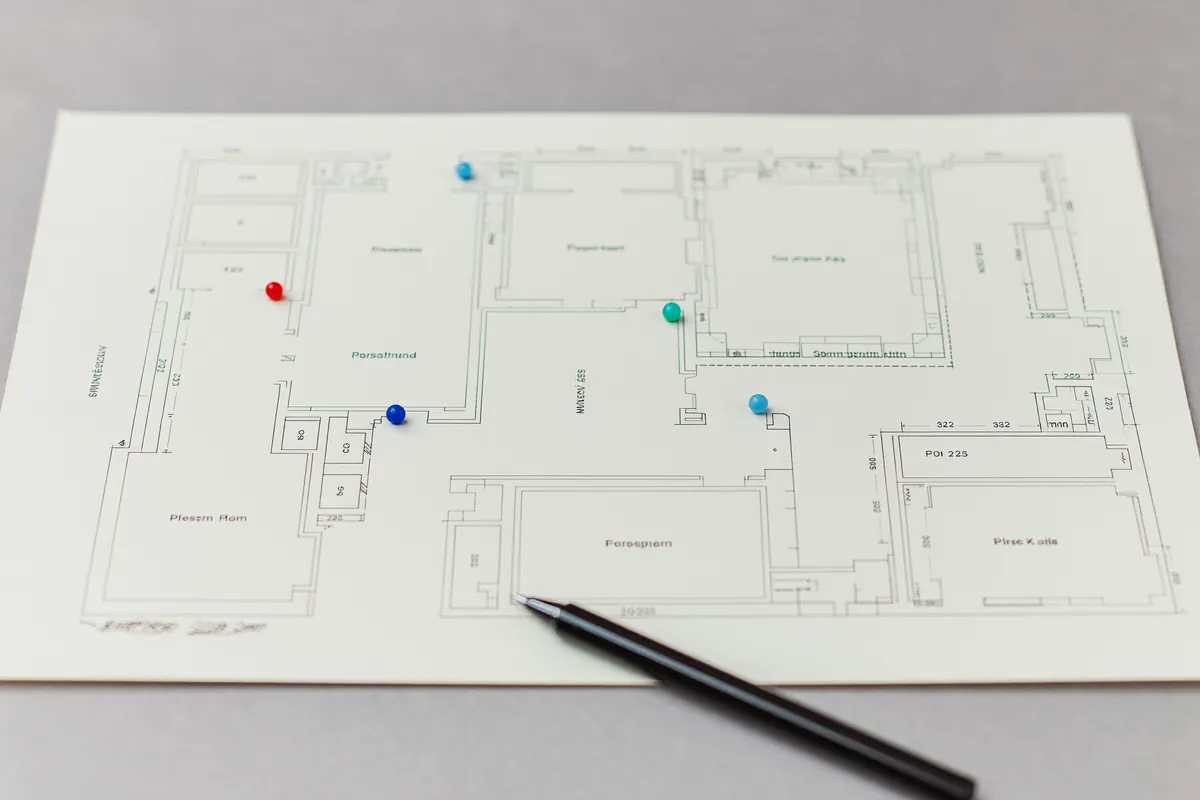
Protocol design
Have our CQV team design your mapping protocol – logger placement, acceptance criteria, and study duration, built around your equipment and regulatory requirements.
Get protocol design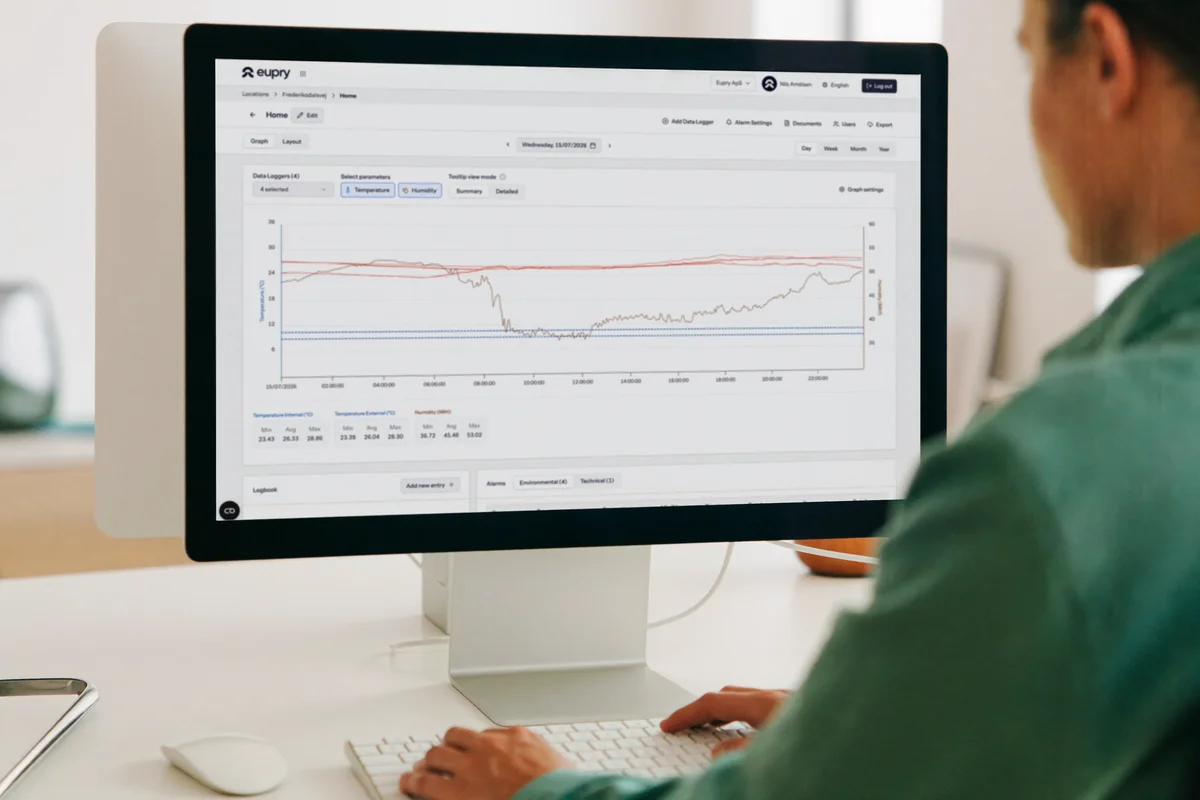
Reporting and analysis
Let our specialists produce the full report – hot and cold spots, excursions, and an audit-ready document you can hand straight to QA.
Request reporting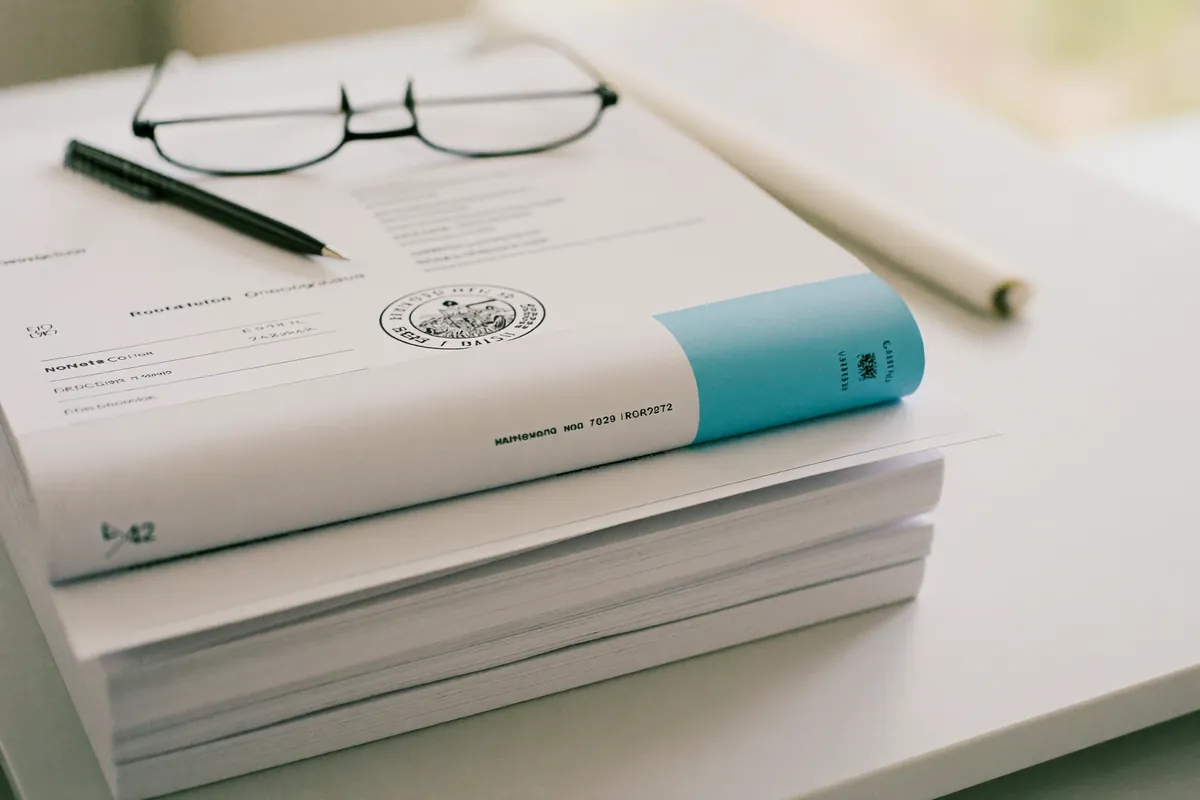
Book a CQV specialist
Talk to Eupry's CQV team and we will help you find the right support – a protocol review, a second opinion, or hands-on help at any point in your study.
Book a consultationRequest
How can we help?
Tell us what you need and a specialist takes it from there – there is no self-service ordering yet. Pick any option above and it is noted on the form for you.
- A specialist reviews your request
- We reply within one business day
- Real people ready to help
- 1,000+
- companies
- 6,000+
- locations
- 50+
- countries
Trusted by teams at DSV, FedEx, and Novo Nordisk.
You can also contact us at support@eupry.com, or call:
- North America+1 (857) 214-5305
- Europe+45 53 51 77 00
Product update webinars
See what is new with the Eupry platform and how to get the most out of your solution.

Best practices: Get the most out of your Eupry platform
Understand the features and tips that make the biggest difference, plus a look at the biggest tech developments of 2026 so far.
Watch
What is new in pharmaceutical compliance technology?
Eupry Q1 2026 product update webinar. Dual compliance, Continuous Aircraft Mapping and Monitoring, and more.
WatchFAQ
Stuck? We have you covered.
Find the answers to some of the most frequent questions about using our mapping kits.
When we ship your kit, you receive an invite for the software in your mailbox. If you have any trouble accessing the mapping software, contact our support team and they will help get it activated or restored for the right users.
Watch step 3: Getting into Eupry Mapping SoftwareYes. Our team can add new users, transfer access, and remove people who should no longer see the project. Send a request to our support team, include the project or mapping name and each user's email address, and note whether they need current data, historical data, or both – or should be removed.
If your internal position numbers do not match the default Position IDs shown in the software, ask support to help align them before you report. The clearest way is to send a file that maps each internal position number to its Eupry Data Logger ID, so the setup matches your approved protocol and floor plan.
If you need the loggers to record at a different interval, contact support with the project name and the exact interval you would like.
Start with the basics: confirm power, check that the logger and sensor are seated correctly, and press the central button on the logger to trigger a reconnect if needed. If the problem continues, send support the logger name or ID, the sensor ID if you have it, and a short description of what happened.
Watch step 2: Connecting your Basestation and loggersIn some setups, yes, but confirm it before you change anything during an active mapping study. If you want to connect through your own network, contact support first so they can advise on the correct setup and avoid interruptions to your data.
Calibration certificates are available digitally in Eupry Mapping Software: open Equipment, select the logger, then click Certificates. They are also attached automatically to every generated mapping report. If you cannot find a certificate for an external sensor, contact us with the project name and the affected logger or sensor IDs.
Watch step 8: Completing your documentation packageIf a logger or sensor is physically damaged, stops responding, or has been replaced, contact our support team as soon as possible. Share the logger name, the sensor ID, what was replaced, and whether you need replacement hardware or updated records. Our team can register replacement sensors and issue new certificates where needed.
When your study is complete, ask support to stop the mapping loggers, remove notifications, and disconnect any users who no longer need access. Support can also help with return handling if the kit is being shipped back.
Watch step 9: Returning your kit